
For all that can be said, Excel spreadsheet will continue to surprise us due to all the uses we can make of it. Indeed, when faced with a problem, it is enough to think a little and see if we can model it in Excel. If so, after implementation, the solutions become obvious. The usefulness of this tool is no longer in question these days. Below, we present three amazing uses of this software that you certainly haven’t suspected until now.
Calculate age from date of birth
Some may say it’s too easy. Certainly, for you alone, it is much easier to determine your age. But imagine you have a long list of people whose birth years you know, but what you’re looking for is their age in years. We often encounter these cases in schools or businesses with client lists. The Excel spreadsheet can help you with that. More specifically, you just need to use the TODAY( ) function.
Find in one of the tips offered on the site www.apprendreexcel.com combinations of this function with other formulas that will allow you to go further and calculate age in months or days. Very handy, isn’t it?
Hide an Excel worksheet
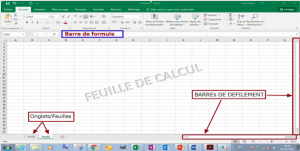 It often happens that we use several sheets when we need to make a presentation in the form of Excel charts. Some are used to contain the data tables used for the synthesis of the charts, while others are for displaying the charts themselves. If you want the information on these sheets where the data appears to remain confidential, you can simply hide them from the readers.
To do this, proceed as follows:
- In the Excel software, right-click on the tab of the sheet you want to hide (the tabs are located at the bottom of the page)
- Scroll down the Format menu, slide the cursor to Sheet, then click on Hide
There you go! It’s done. We can stop there, as the sheet will have disappeared from the entire set of sheets in your workbook. But you must also think about how to make it reappear.
- We will once again use the menu. As before, slide the cursor to Sheet, but this time click on Unhide.
- In the list that will appear, you just need to select the sheet you had hidden and then click on OK, and it will be accessible again in the tabs at the bottom of the page.
Insert an image in Excel
Have you done fieldwork and want to insert images for the presentation of your results in Excel to illustrate what you are dealing with? It is indeed possible.
 The most important thing is to insert one or more clipart images that best describe your subject. To do this, scroll down the Insert menu, then click on clipart images and make your choice.
In addition to clipart images, you can add an image from a file on your computer using the classic method or by running a macro.
A complete tutorial is dedicated to this topic on www.apprendreexcel.com. You will find in fine detail the complete procedure for adding photos to your Excel document.