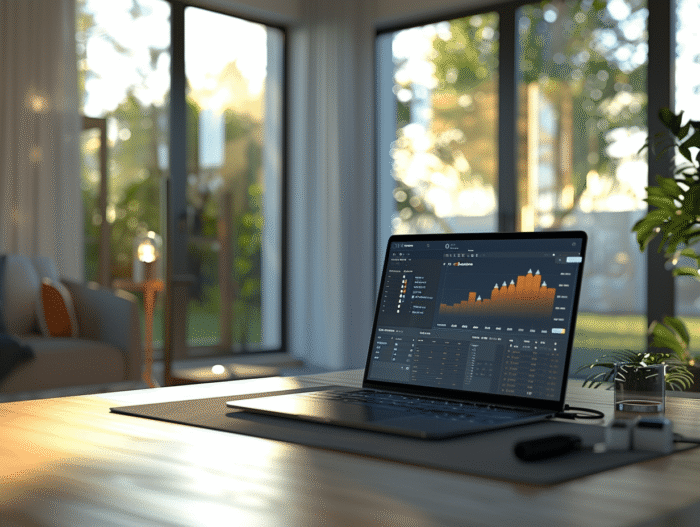
Facing the difficulties encountered by HP computer users when trying to connect their devices to external displays via HDMI, a clear and structured method is required. The problems vary: no signal, incorrect resolutions, or even the complete inability to detect a second monitor. These inconveniences can arise following system updates, driver conflicts, or hardware failures. Fortunately, by following a series of precise checks and adjustments, it is often possible to restore the connection and fully enjoy the external display capabilities offered by these computers.
Diagnosing and Resolving HDMI Output Issues on an HP Computer
When faced with a black screen or any other malfunction related to the HDMI output of your HP computer, a precise methodology is essential. Start by checking the firmness of the connections between your laptop and the HDMI-compatible device, whether it is an external peripheral monitor or a projector. Ensure that the HDMI cable is securely plugged into the corresponding HDMI ports and that it shows no visible damage. This basic visual inspection can sometimes be enough to resolve HDMI output issues connected to an HP PC.
Continue with a software evaluation: check the Windows display settings to ensure that the second screen is detected and configured correctly. The system should normally automatically recognize the HDMI-compatible source device and the HDMI-compatible device. If not, attempt a manual detection through the operating system. Updating or reinstalling the graphics drivers may be necessary, as they play a fundamental role in managing the audio and video signals sent through the HDMI port.
Explore hardware solutions. The possibility that a faulty HDMI port is causing the problem should not be dismissed. To confirm this, test with different cables and different devices, if possible. In cases where the problem persists despite all these checks, consider consulting HP technical support or seeking professional help. Resolving these complications may sometimes require intervention on the computer’s hardware, or even its replacement.
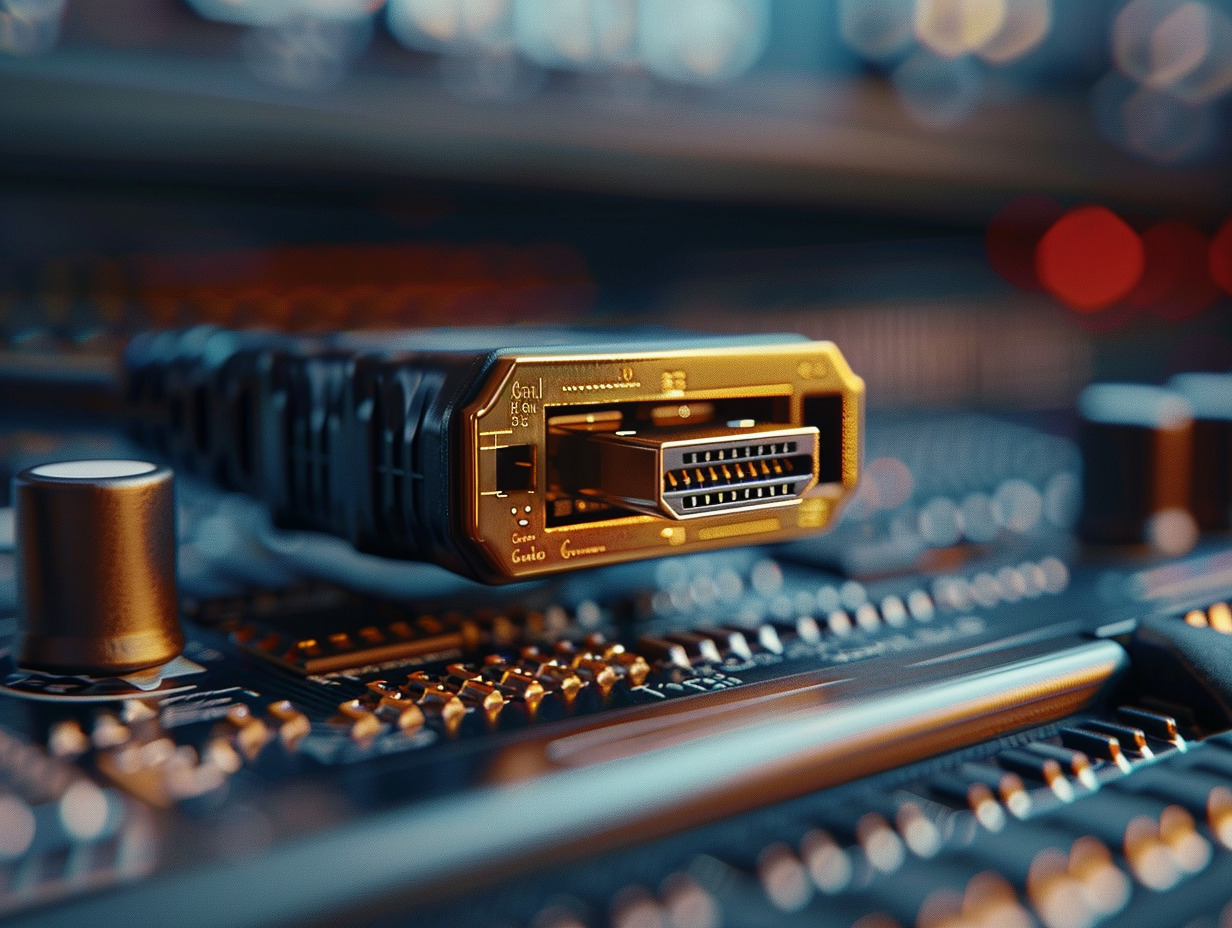
Optimizing and Preventing HDMI Output Issues
In the current context, where digital media streamers and high-definition televisions have become commonplace, the HDMI interface has established itself as an essential standard. To optimize the use of this technology and prevent connection issues, regular maintenance is necessary. Ensure that your computer’s software, including the Windows operating system and graphics drivers, is always up to date. Use the Windows Update feature to download the latest versions, thereby enhancing compatibility and performance of the HDMI signal.
Beyond software updates, managing the power supply of devices must be taken into account. Ensure that the computer and the HDMI receiving device are properly powered and avoid plugging into unstable or overloaded power sources. This precaution can significantly reduce the risks of interruptions or interference in signal transmission.
For those who frequently switch between presentation modes or connect their computer to different HDMI devices, investing in a quality adapter or an HDMI switch can simplify the connection process. Such devices allow for easy switching between sources and reduce wear on the HDMI ports of the computer and cables.
Prevention also involves careful use of the hardware. Users should avoid forcing connectors when plugging in HDMI cables and maintain cable organization to prevent twisting or pinching. Consider acquiring HDMI cables with reinforced protective sheathing for increased durability. These simple yet effective actions can ward off the specter of malfunctions and ensure a seamless audiovisual experience.